Intercom integration
Connect Intercom and your support conversations and tickets land in the Usero inbox as feedback.
Read-only OAuth, one click. Every hour Usero pulls the conversations and tickets with new activity from Intercom into your feedback inbox, where they cluster with reports from the widget, your public board, Slack and email, and count toward the same themes. Tag filter, ticket type picker, Sync now, and a link back to Intercom on every item. Free on every plan.
The people who write to support are the users with the most to say about your product. Their messages get answered and closed in Intercom, and the product team reads none of them.
Support is the widest channel of user feedback most startups have, and the least counted. A customer explains, in full sentences, that the export times out on large workspaces. The support agent fixes their immediate problem, tags the conversation "bug", closes it, and the product team never hears about it. The next week another customer says the same thing to a different agent. Intercom can report on tags, and someone could build a dashboard, but a tag count in a helpdesk is still cut off from the widget report, the board post with 14 votes and the Slack message that all describe the same export problem. The theme looks small in every tool because it is split across four of them. What fixes it is the conversation itself arriving where the rest of the feedback already is, with no agent doing anything extra.
How it works
Intercom integration in Usero.
Disclosure: I build Usero, so weigh that. Connecting is an Intercom OAuth install with read-only scopes: you approve it on Intercom's consent screen and Usero stores the token encrypted. From then on Usero polls Intercom once an hour for conversations and tickets with new activity and imports them into your feedback inbox. A conversation arrives with its opening message as the body, the subject as the title, and the customer's email attached as the reporting user. A ticket arrives with its title, description, every custom attribute, its notes and replies, and its type and state as pills. Each imported item runs through the same clustering as every other source, so the Intercom conversation about the export timeout and the widget report about the export timeout collapse into one theme with one count. Every item links back to the original in Intercom. And because it is a normal feedback item, it can end as a pull request: connect a GitHub repo, open the cluster, click Create PR, and Usero drafts a first pass at the fix on a branch. You review and merge. Nothing is written back to Intercom at any point.
Support agents change nothing
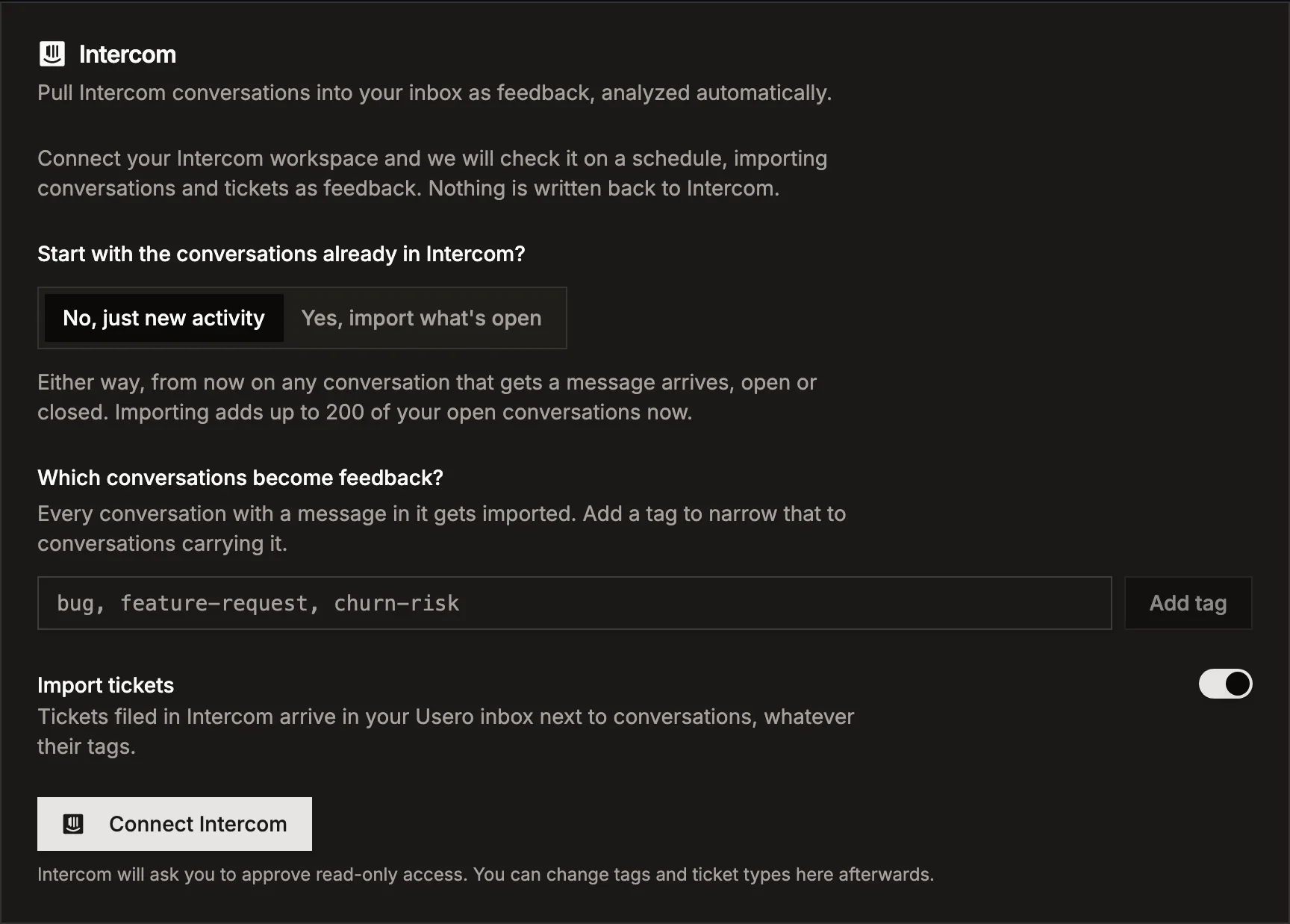
No new button, no forwarding habit, no "remember to log it". Agents keep working in Intercom exactly as they do today. If you want only some conversations to count, they tag as they already do and you add those tags to the filter in Usero. Matching is case-insensitive, so "Bug" and "bug" both match.
Tickets come with everything on them
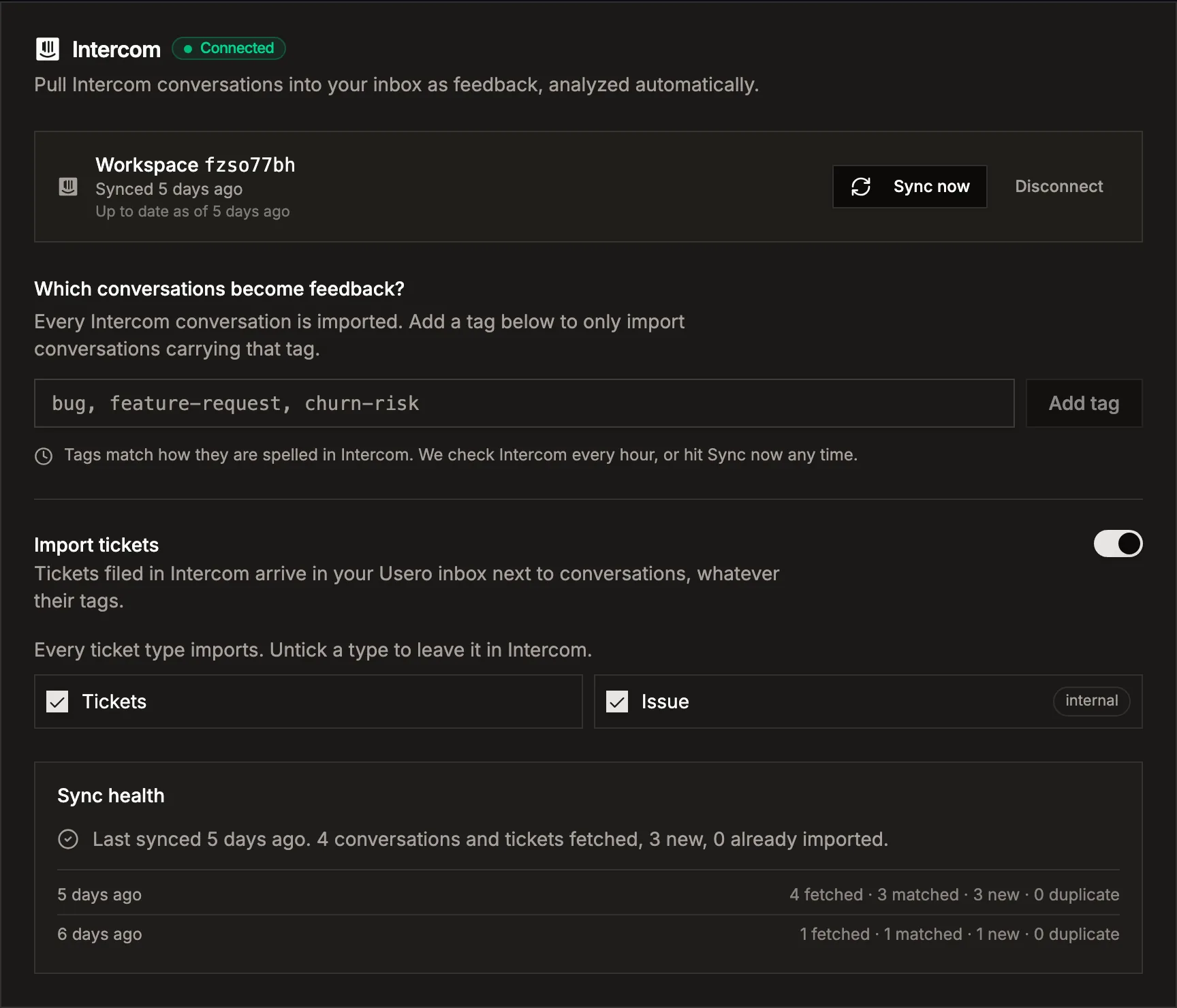
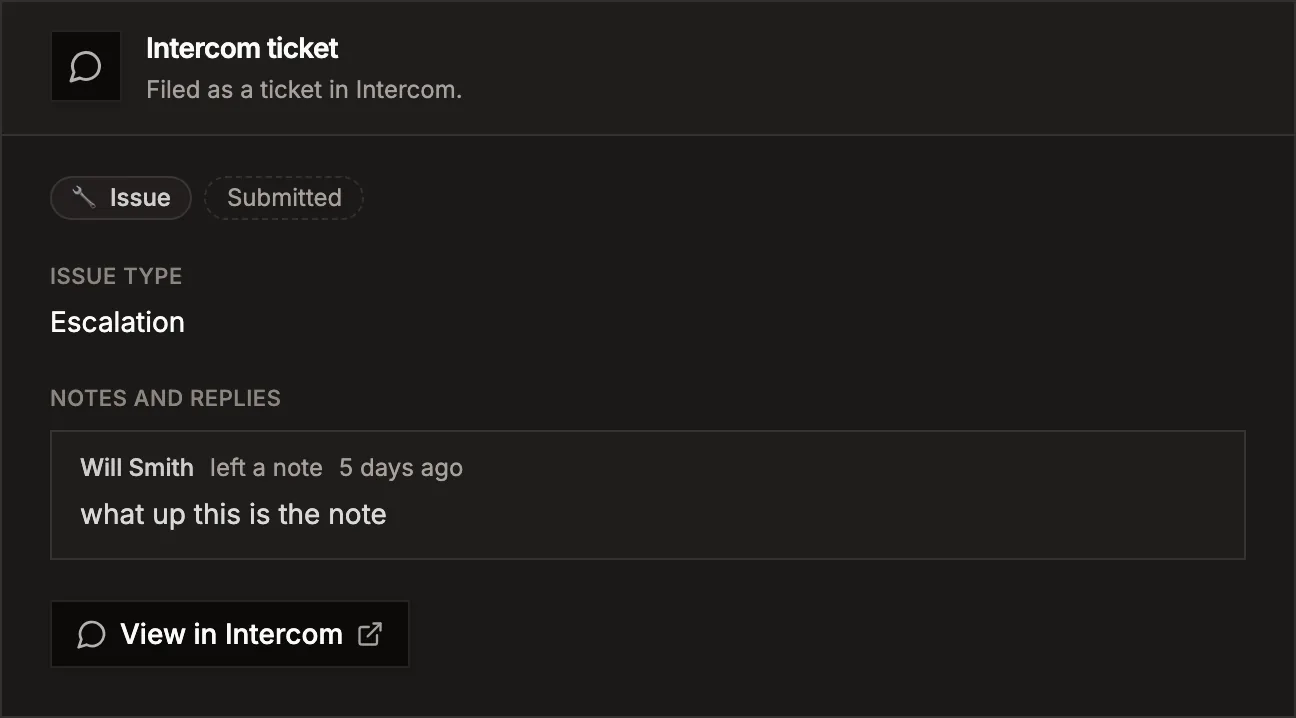
An Intercom ticket imports as more than a title. The description, every custom attribute as a labelled line ("Issue type: Escalation"), and the notes and replies from the ticket timeline all come across, with the ticket type and state shown as pills on the item. Turn ticket import off, or untick specific ticket types, from the same panel.
Counted with the rest of your feedback
Imported conversations and tickets cluster with widget reports, public board posts, Slack captures and forwarded emails, so the theme count is the real number across every channel and the prioritisation view ranks it accordingly.
Read-only, and the link goes back
Usero asks Intercom for three read scopes: conversations, tags, and one contact to resolve the author. Never admins, never write access. It cannot reply, tag, assign or close anything. Every imported item carries a View in Intercom link, so the conversation stays the place you answer the customer.
The limits
What the import does not do
Four limits to know before you connect.
A conversation imports its opening message
For a plain conversation the body is the customer's first message. Later replies in that conversation are not imported; the View in Intercom link is where the full thread lives. Tickets are the exception: their notes and replies come across.
Hourly, not live
Usero polls Intercom once an hour. A conversation that arrives at 10:05 shows up in the inbox by 11:00, sooner if you hit Sync now. There is no webhook path yet.
The backfill is open conversations only, up to 200
If you choose to import what is already in Intercom at connect time, the first sync takes the conversations that are currently open, capped at 200. Closed and snoozed conversations are skipped by that first sync, however recent. A workspace that closes conversations as they finish backfills few or none. From then on any conversation that gets a message imports, open or closed.
Attachments stay in Intercom
The text of the message comes across; images and files attached to it do not. If a report hinges on a screenshot, the link back takes you to it.
The honest objection
Intercom already tags and reports on conversations. Why copy them into another tool?
Keep using Intercom for the conversation. Usero does not reply to customers, assign agents, or manage the thread, and it should not be where support work happens. The import exists so that the product signal inside those conversations gets counted next to the signal from everywhere else. A tag report inside Intercom tells you how many support conversations mentioned exports. It cannot tell you that the same problem has 14 votes on your public board, 6 widget reports and a Slack thread, because those never reach Intercom. If your product feedback only ever arrives through support, the tag report is enough and this integration is a nice-to-have. Once feedback arrives from two places, neither count is the whole number.
FAQ
Quick answers about intercom integration.
How do I get Intercom conversations into Usero?
Open Settings in your Usero project, find the Intercom panel, choose whether to import the conversations already open, optionally add tags, and click Connect Intercom. Intercom shows a consent screen listing read-only scopes; approve it and you land back in Usero connected. From then on Usero polls Intercom every hour and imports conversations and tickets with new activity.
Can I import only some conversations?
Yes. Add one or more Intercom tag names to the tag filter and only conversations carrying at least one of them import. Matching is case-insensitive. The tag filter does not apply to tickets, which have their own Import tickets switch and a ticket type picker.
Does Usero write anything back to Intercom?
No. The integration asks for three read scopes (conversations, tags, one contact) and no write scope. It cannot reply, tag, assign, snooze or close a conversation. Disconnecting removes the stored token.
What does an imported ticket look like?
A feedback item titled with the ticket title, whose body is the description followed by every custom attribute as a labelled line and the notes and replies from the ticket timeline. The ticket type and state show as pills, and a View in Intercom button links to the ticket. A ticket filed by an admin has no customer on it, so no reporting user is attached.
How often does it sync, and can I trigger one?
Once an hour, automatically. The connected panel has a Sync now button that runs the same poll on demand. Dedup is by Intercom conversation id, so syncing twice never creates a duplicate.
Why did the first import bring in so few conversations?
The backfill at connect time imports open conversations only, up to 200. Closed and snoozed ones are skipped by that first sync. If your team closes conversations as they finish, the open set is small. Any conversation that gets a new message from then on imports regardless of state.
Is the Intercom integration on a paid plan?
No. It is available on every plan, free included.
Turn that feedback into a pull request.
Free tier. No credit card. Two-minute install. The AI opens the PR, you merge it.
Keep reading
- Connect Intercom (setup docs)->
- Best user feedback tools (2026)->
- Widget Editor->
- Person profiles->
- AI user tests->
- Demand threshold auto PR->
- Sentry Integration->
- Session Replay->
- AI Replay Scanner->
- Traffic source capture->
- AI-authored GitHub PRs->
- MCP server for Claude Code and Cursor->
- Slack feedback capture->
- Forms->
- Feedback clustering->
- App store review import->
- Chrome extension->
- Discord feedback capture->
- Email forwarding->
- GitHub issue sync->
- Feedback API->
- User testing->
- User test referrals->
- Public roadmap and feedback board->
- Chrome Web Store review import->
- Unified feedback inbox->
- Changelog->
- Revenue-weighted prioritization->
- Evidence quotes on clusters->
- Survey Score Over Time->
- Notion integration->
- Linear issue sync->
- Jira issue sync->